Define the shot
Write one sentence describing the subject, the main movement, the environment, the camera feel, and the mood. Keep the action singular for the first generation.
Video workflow
This guide to how to use haiper ai video takes you from a prepared idea to a reviewed clip without skipping the decisions that affect the result.
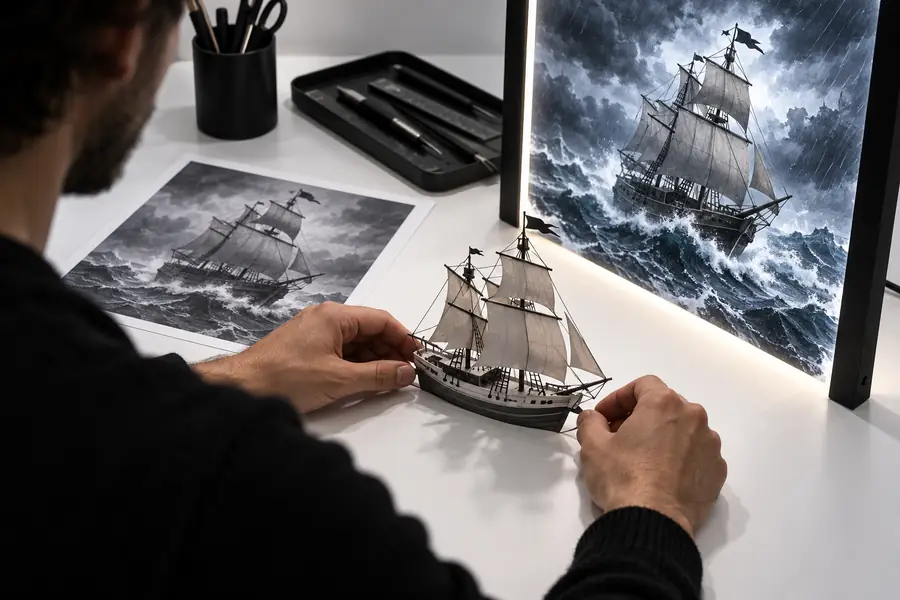
A few minutes of preparation makes the rest of the workflow easier to evaluate and repeat.
Use this sequence as a repeatable baseline, then change one variable at a time when you revise the result.
Write one sentence describing the subject, the main movement, the environment, the camera feel, and the mood. Keep the action singular for the first generation.
Select the available creation mode that matches your material. Start with text when the scene exists mainly as an idea; use an image when composition or appearance already matters.
Submit the prompt, watch the result more than once, and note what changed successfully and what failed. Revise the weakest instruction instead of rewriting everything.
Adjust one element at a time, such as motion strength, camera direction, subject action, or scene detail. Save the version that best matches the intended shot.
Treat this checklist as a quick diagnostic pass before you generate again.
Add one observable movement, such as walking, turning, drifting, opening, or rising.
Choose the primary action first and move secondary details into a later revision.
Use a sharper image with a readable subject and enough surrounding context when the interface permits image input.
Describe a simple movement such as a slow push-in, lateral track, tilt, or locked-off view.
Replay it and check the opening, middle, and ending for continuity, unwanted motion, and framing changes.
These related routes cover the main inputs and publishing context that often shape a Haiper workflow.
This page focuses on turning written scene direction into a generated video concept.
This guide explains how an image can serve as the visual starting point for motion.
This page considers how generated clips can fit into a YouTube-oriented production workflow.
The most useful improvements usually come from controlling scope and comparing revisions, not from adding more adjectives.
A generation tool can interpret a description, but it cannot reliably choose your intended subject, action, and mood when those are ambiguous.
WorkaroundWrite the shot as a visible event: who or what is present, what moves, where it happens, and how the camera behaves.
Generated motion may change a subject's appearance, geometry, or background details between moments.
WorkaroundKeep the action simple, use a stronger visual reference when appropriate, and inspect the whole clip before using it.
A technically attractive result may still have the wrong pacing, framing, emotional tone, or role in your project.
WorkaroundJudge every version against the purpose of the shot, then retain only clips that support the larger sequence.
A low-detail, obstructed, or poorly framed image limits what an image-led workflow can preserve.
WorkaroundPrepare a clearer source or switch to a text-led concept when the starting image is working against the idea.
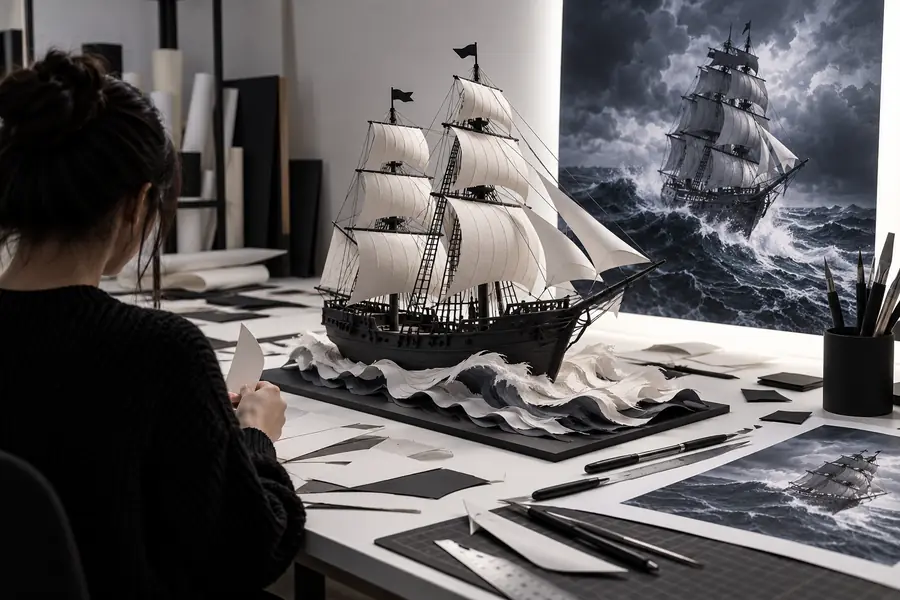
A before-and-after check makes it easier to see whether a prompt change improved motion or only added visual noise.
Compare the subject, action, framing, and unwanted movement—not just the still image.
Adapt the same basic process to the way you plan to use the clip after generation.
Use short prompts to test several directions before committing to a detailed scene. The goal is to discover a useful visual idea, not to solve every production decision in one generation.
Begin with the strongest available image when the composition, character, product, or setting is already important. Describe the movement you want without asking the system to redesign the entire scene.
Think about how the generated shot will function beside other footage. A clip with a clear entrance, readable action, and suitable ending is often more useful than a more elaborate but inconsistent result.
Bring a focused scene description into Haiper, generate a first pass, and use the review checklist to decide what deserves another iteration. Start with the smallest useful change so each result teaches you something.
Answers to practical questions that come up when learning how to use haiper ai video.
Start with the subject, one visible action, the setting, and the mood. Add a simple camera direction only after the core shot is clear, so you can tell which instruction affected the result.
Use text when you are exploring an idea that does not yet have a visual reference. Use an image when the composition, subject appearance, or setting already matters and you want that starting point to guide the motion.
A prompt is an instruction, not a frame-by-frame specification, so the result may interpret vague or competing details differently than you expected. Make the action more visible, remove secondary actions, and revise one detail at a time.
Keep the parts that worked and change only the weakest variable, such as the subject action, camera movement, or scene detail. Compare the new version with the earlier pass and keep the revision that better serves the intended shot.