Haiper

Prompt to scene

Create scenes with haiper text-to video

Haiper text-to video turns a written idea into a visual starting point. Use a focused prompt, choose the right creative direction, then refine the result around motion, subject, and atmosphere.

Prompt handoff to Haiper
Abstract cinematic video scene generated from a written prompt

Start with the right prerequisites

A strong text-to-video attempt begins before you press generate. Prepare a clear subject, a visible action, and a simple visual direction.

Concept artists

You have a mood, character, or location in mind but need a moving visual reference quickly.

Describe the composition first, then use the result to test atmosphere and pacing. The [haiper photo to video](/photo-to-video-haiper/) route is useful when your starting point is already an image.

haiper photo to video

Short-form creators

You need a compact scene for an intro, transition, visual hook, or background plate.

Keep the prompt centered on one action and one camera feeling. The [haiper for youtube](/haiper-for-youtube/) guide covers ways to think about scenes inside a channel workflow.

haiper for youtube

Creative teams

You want to compare several visual directions before committing to a larger production.

Write prompts that change one variable at a time so the comparison remains useful. The [haiper online video generator](/haiper-online-video-generator/) page explains the browser-based surface around this kind of work.

haiper online video generator

Beginners

You are unsure how much detail a video prompt needs or which details matter most.

Begin with subject, action, setting, and style; add camera language only after the core idea is understandable. The [what is haiper app](/what-is-haiper-app/) overview gives broader context before you experiment.

what is haiper app
Follow one full run-through

The workflow is easier to control when each prompt has a job. Treat the first output as a visual draft, not as the final edit.

Write the visual brief

Name one primary subject, one clear action, and one setting. Add a mood or lighting cue only when it supports the scene rather than competing with it.

Generate the first scene

Submit the prompt through the video workflow and inspect the result for the basics: does the subject remain recognizable, does the movement match the verb, and does the composition support the idea?

Refine one variable

Change only one meaningful detail at a time, such as camera movement, time of day, or subject action. This makes each new result easier to evaluate and reuse.

Compare your prompt options

Different prompt structures suit different goals. These three approaches help you decide how much creative direction to include.

Direct subject and action

Use this format when the idea matters more than a highly specified look. It gives the generator a compact brief with fewer competing instructions.

  • Name one dominant subject.
  • Use a concrete action verb.
  • Add a simple location or environment.

Cinematic scene direction

Add lighting, lens feeling, atmosphere, and camera movement after the subject and action are clear. This can shape the mood while keeping the scene readable.

  • Describe the light or time of day.
  • Choose one camera movement.
  • Use style words that support the intended emotion.

Controlled prompt variations

Create several nearby versions by changing one detail at a time. This is useful when you are exploring visual direction and want to understand which wording changes the result.

  • Keep the subject consistent.
  • Change one setting or action detail.
  • Record the version that best matches the brief.

Know what fails

Text-to-video is a generative starting point, so some requests are more reliable than others. Knowing the weak spots helps you write prompts that are easier to judge.

Overloaded scenes lose focus

A prompt with many subjects, locations, actions, and style references can produce a result that feels visually confused.

WorkaroundReduce the brief to one main subject, one action, and one dominant environment before adding detail.

Small details may drift

Fine text, precise object features, and continuity details can change between generated moments or appear less stable than expected.

WorkaroundUse the output for atmosphere or concept development, then handle exact labels and fine continuity in an editing workflow.

Complex choreography is difficult

Multiple characters performing separate timed actions are harder to describe clearly than a single subject with one readable movement.

WorkaroundSplit the idea into shorter shots or simplify the action to one primary motion.

A prompt cannot replace an edit

A generated scene may have the right feeling without having the exact duration, sequence, or pacing needed for a finished project.

WorkaroundPlan the output as one shot in a larger timeline and refine its role during editing.

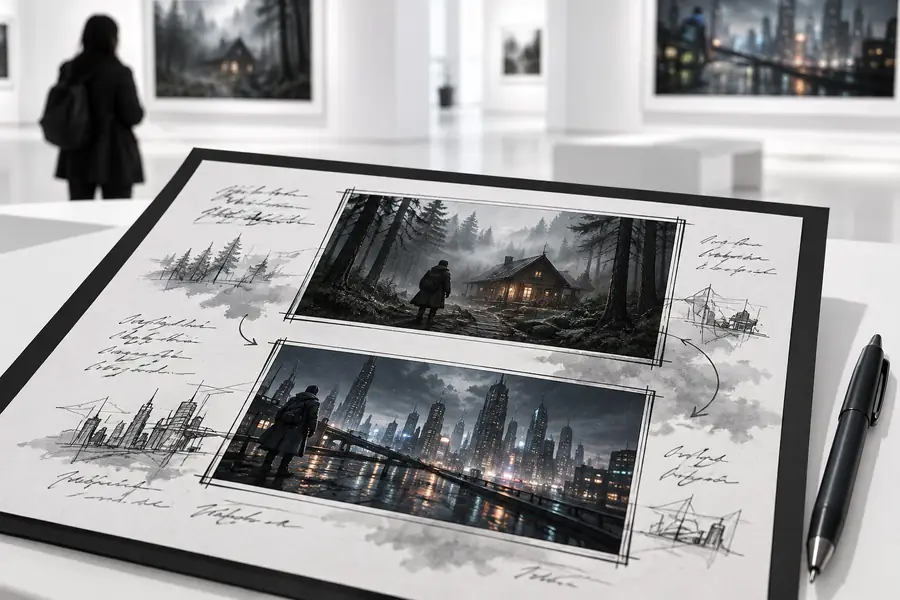
Prompt direction

Written text prompt prepared for a generated video scene
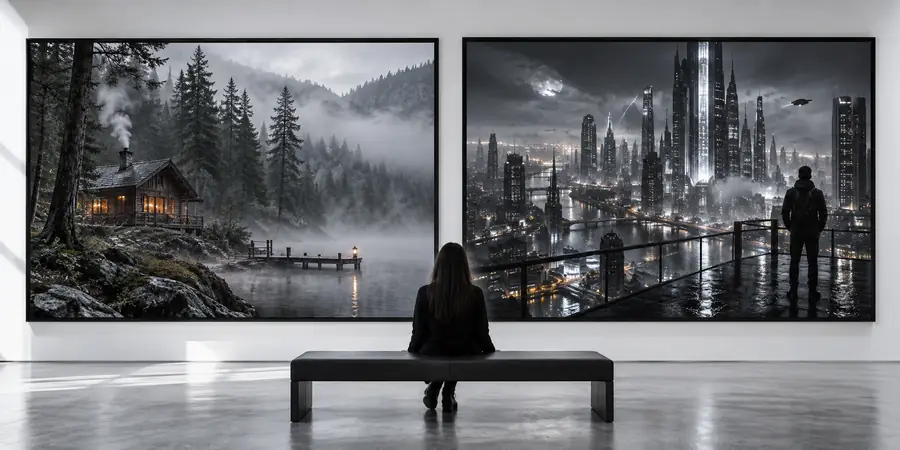
Generated cinematic scene from a text prompt
Scene output

The prompt is the brief; the output is the visual draft.

Turn a written idea into a moving draft

When the subject, action, and visual direction are clear, a text prompt can give you a useful first scene to review. Start with the simplest version of the idea, inspect what changed, and refine the wording instead of rewriting everything at once.

  • Describe one clear action
  • Refine one variable at a time
  • Use the result as a visual draft

Haiper text-to-video FAQ

Answers to common questions about prompting, scene control, and the limits of this workflow.

Haiper text-to video is a prompt-based workflow for turning a written scene description into a generated video starting point. You describe the subject, action, setting, and visual direction, then review the resulting scene.

Start with one subject, one visible action, and one environment. Add mood, lighting, or camera movement after the core scene is clear so the prompt stays focused.

Not every scene will translate exactly as written. Crowded compositions, complex choreography, precise small details, and continuity-heavy requests may need simpler prompts or several separate shots.

Identify the most important problem first, such as an unclear action or distracting setting. Rewrite that one part while keeping the rest of the prompt stable, then compare the new result with the original.

It can provide visual drafts, concept footage, and individual shots for a wider edit. Finished use still depends on reviewing the generated scene and fitting it into the intended sequence, pacing, and production requirements.

Start creating
Start creating